GPC Photoshop: ComfyUI Inside Photoshop
View on GitHubFor my image work, I'd been juggling three tools: Photoshop, Krita and Magnific. Krita was my Photoshop-esque bridge to ComfyUI, Magnific was my bridge to the paid models, and everything always had to end up back in Photoshop. Those round trips were annoying, and having Krita open alongside everything else was eating precious VRAM while I worked.
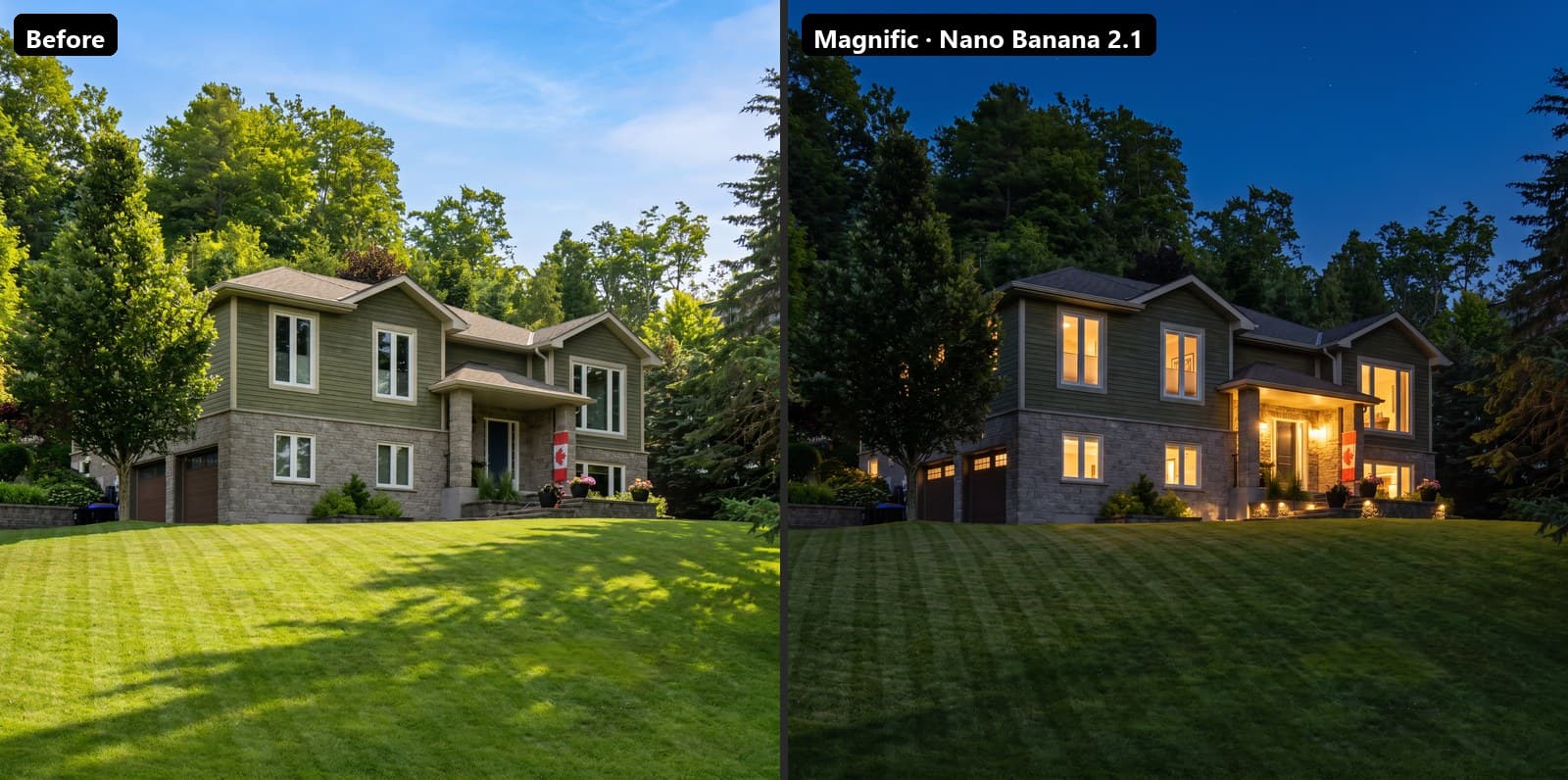
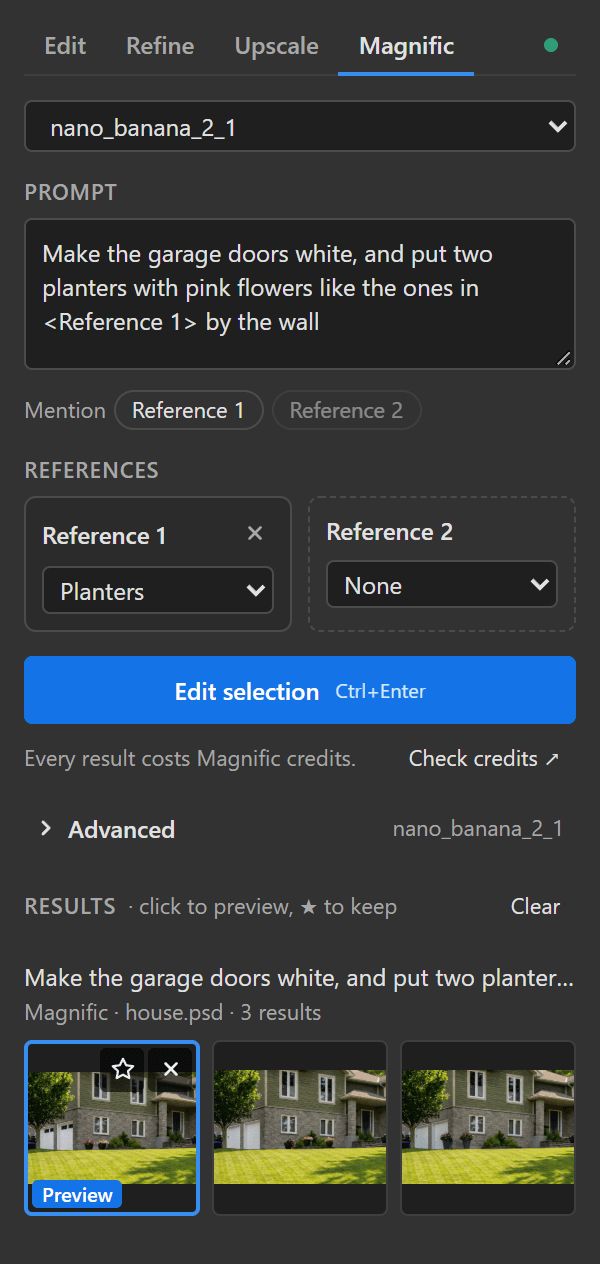
I wanted fewer tools open, so I built a Photoshop panel that does the round trip for me. Select an area, write what you want, click the button. The panel sends the selection and its surroundings to ComfyUI, runs a workflow, and places the result back over the selection, lined up, blended in, at full resolution. Edit locally with Flux 2 Klein, or with Google's Nano Banana through a Magnific API key, all without leaving Photoshop.
The best part: it works in older Photoshops too (2022 or newer), with no Creative Cloud app or Adobe sign-in needed. It's free and open source, and the code is on GitHub.
What it does#
| Tab | For | Bundled template |
|---|---|---|
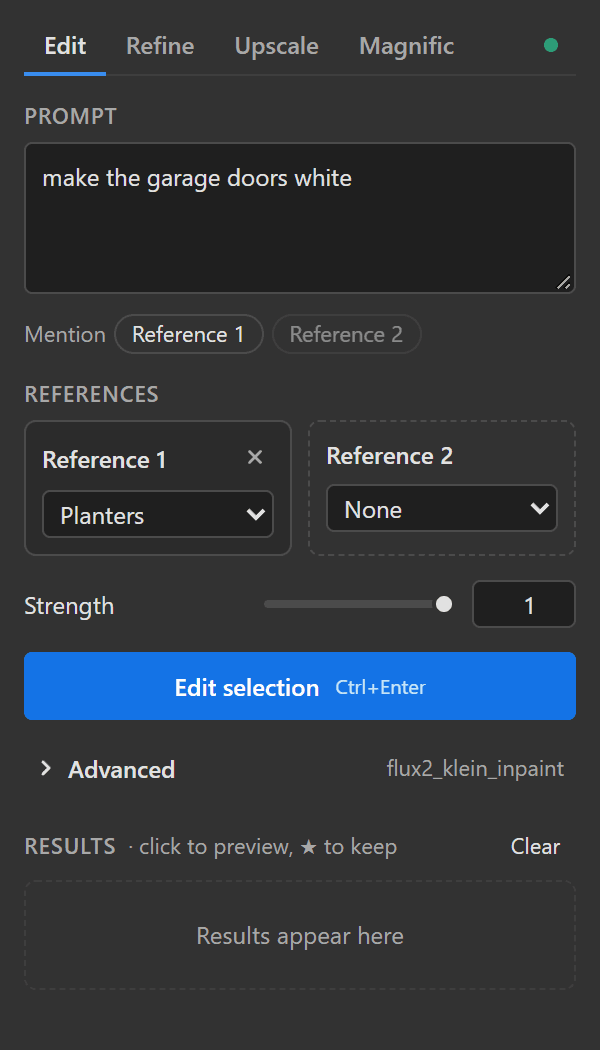
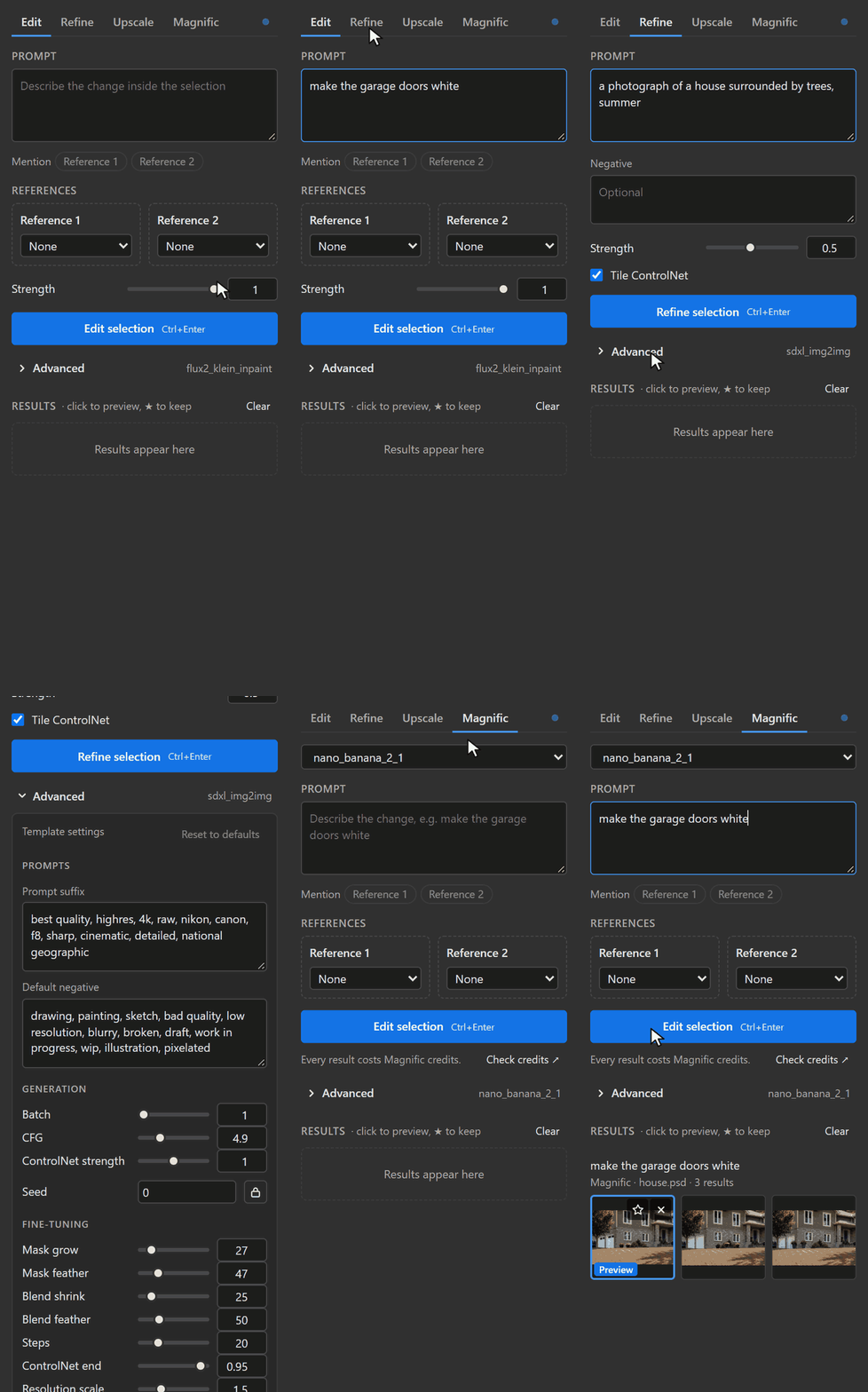
| Edit | Changing what's inside a selection with an instruction, optionally with reference images | Flux 2 Klein 4B |
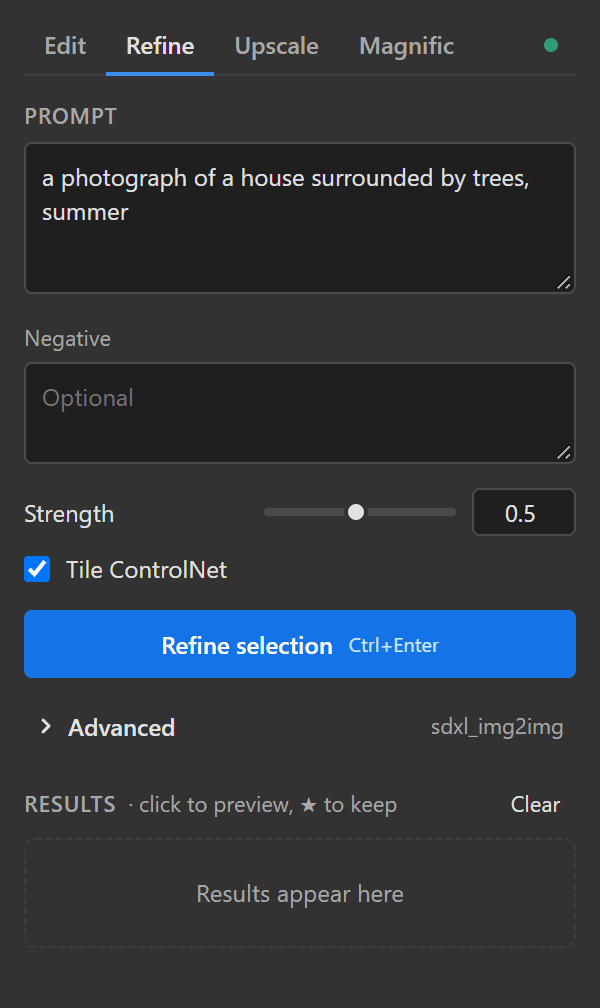
| Refine | Img2img: repainting a selection or the whole image while keeping its shapes | SDXL (Juggernaut XL) with a tile ControlNet to help avoid hallucination, tiled automatically for bigger selections |
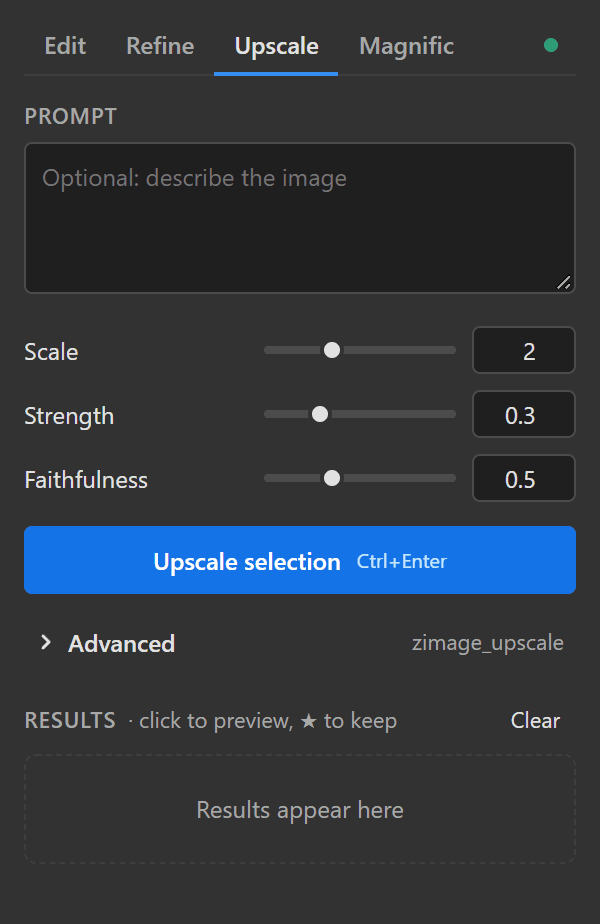
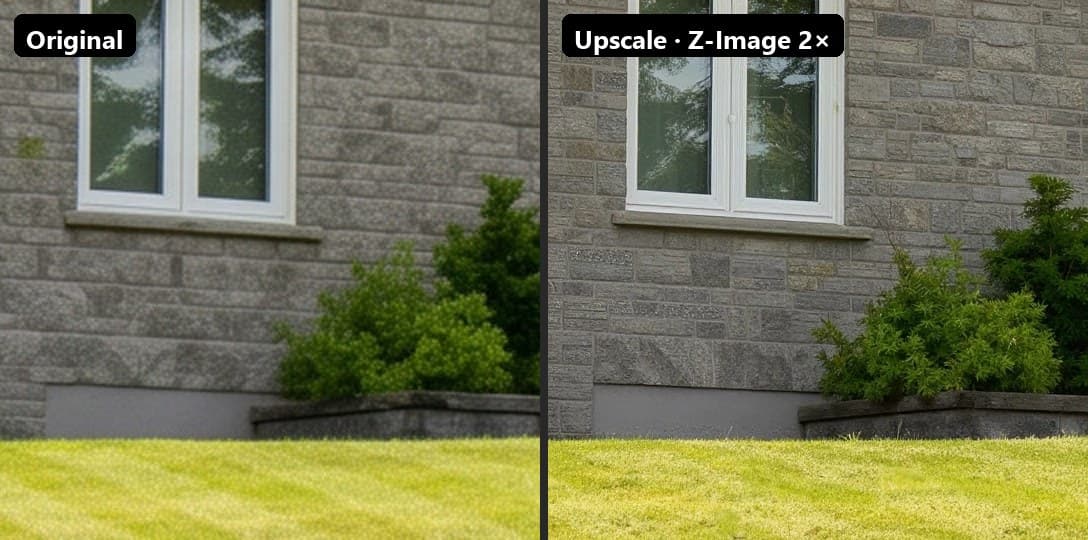
| Upscale | Making the whole image, or part of it, 2–4× larger with new detail | Z-Image Turbo, running a custom UltimateSDUpscale-style tiled upscale |
| Magnific | Editing with Nano Banana 2.1, Pro or Pro Flash (paid, online, with your own Magnific API key) | No local model needed |
- Results show up as thumbnails, and the first one previews in the document right away. Keep the ones you like as layers, discard the rest.
- Results land exactly over the area they were made for, as layers or smart objects, with soft edges.
- Any ComfyUI workflow can become a panel template by adding a few small marker nodes. No code needed.
- It's a classic CEP panel, which is why it runs in Photoshop 2022 and newer without a Creative Cloud app or sign-in.
Examples#


Quick start#
You need Photoshop 2022 (v23) or newer on Windows or macOS, and a working ComfyUI.
- Install the node pack into ComfyUI and restart it:
cd ComfyUI/custom_nodes git clone https://github.com/gprzzzz/ComfyUI_GPC_Photoshop.git - Close Photoshop and run the panel installer from the
photoshopfolder:install_windows.batorinstall_mac.sh. - Start Photoshop and open Window › Extensions (legacy) › GPC ComfyUI. The dot at the top right turns green when the panel reaches ComfyUI.
- Get the models for the templates you want to use. The panel tells you what's missing.
A few tips#
- For Edit and Magnific, describe the change: "make the garage doors white". For Refine, describe the whole picture: "a photograph of a house surrounded by trees".
- Refine strength: 0.3 polishes, 0.6 reworks, 1 starts over. Keep the tile ControlNet on above ~0.5 or SDXL will redraw the scene freely.
- For soft vegetation, try Refine at strength 0.75 with ControlNet strength at 0.6: the shapes stay, and SDXL is free to draw new leaves.
- Reference images can be named right in the prompt:
Add flowers like the ones in <Reference 1> by the front steps - Ctrl+Enter in the prompt runs it. Lock the seed to repeat a result while you tweak something else.
The full install, usage and template guides (models per template, making your own templates, troubleshooting) live in the GitHub repo. If you try it on a project, I'd love to see what you make with it.
GPL-3.0. The bundled workflows follow the graphs of Krita AI Diffusion, rebuilt for Photoshop. Not affiliated with Adobe, Magnific, Google or Black Forest Labs.